Draw it
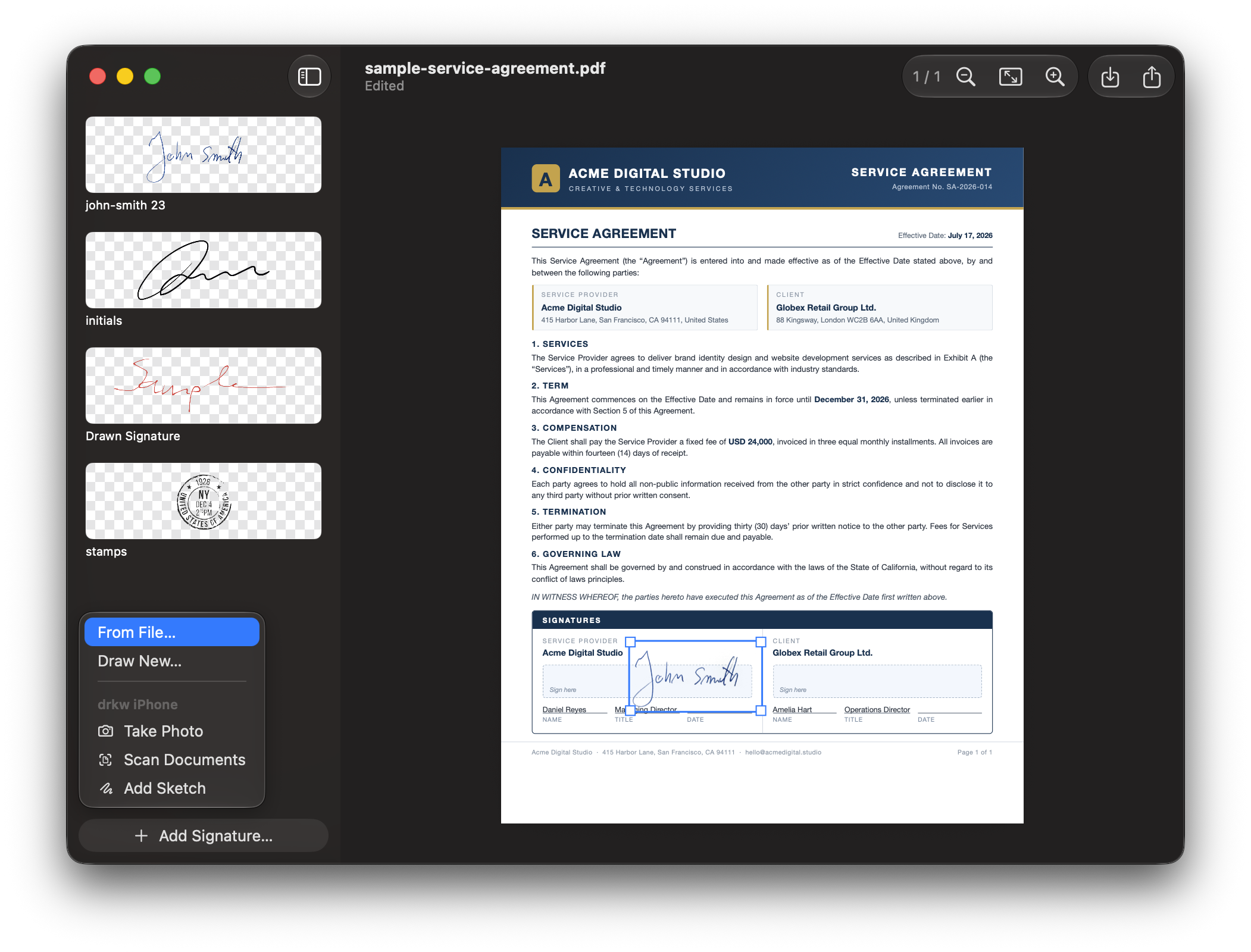
Velocity-sensitive ink: slow strokes pool wide, fast flicks run hairline, ends taper. Three inks and a custom color picker — your trackpad finally signs like a pen.
Trackpad & mouse
Native macOS app
PDF Signery does a single job — putting your signature on a document — and obsesses over doing it better than anything else. Draw it, scan it, or sketch it on your iPhone. Place it. Flatten it. Done.
The whole idea
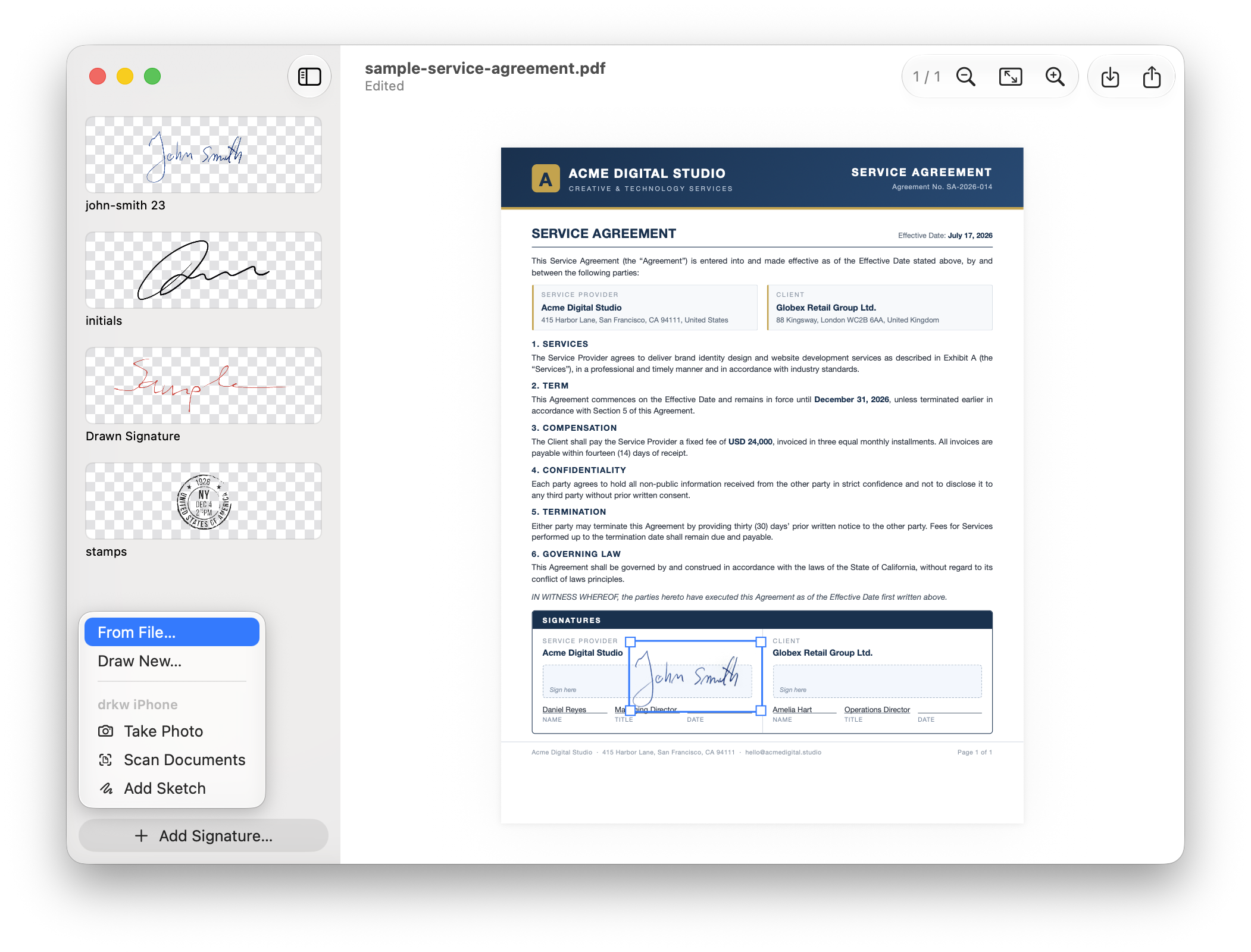
No editor. No converter suite. No cloud platform with a PDF viewer attached. Every pixel of PDF Signery exists for one moment: your signature, on the page, exactly right.
Creating a signature
However you sign best — with a pen, a trackpad, or your phone — it ends up in your library as clean, transparent ink, ready to reuse on every document.
Velocity-sensitive ink: slow strokes pool wide, fast flicks run hairline, ends taper. Three inks and a custom color picker — your trackpad finally signs like a pen.
Trackpad & mouse
Import a photo or scan of your pen-and-paper signature. The paper disappears automatically on the way in — lighting, shadows and off-white included.
PNG · JPEG · TIFF
Take Photo, Scan Documents, or Add Sketch with Continuity Camera — straight from the Add Signature menu. It lands in your library, background already removed.
Continuity Camera
iPhone → Mac
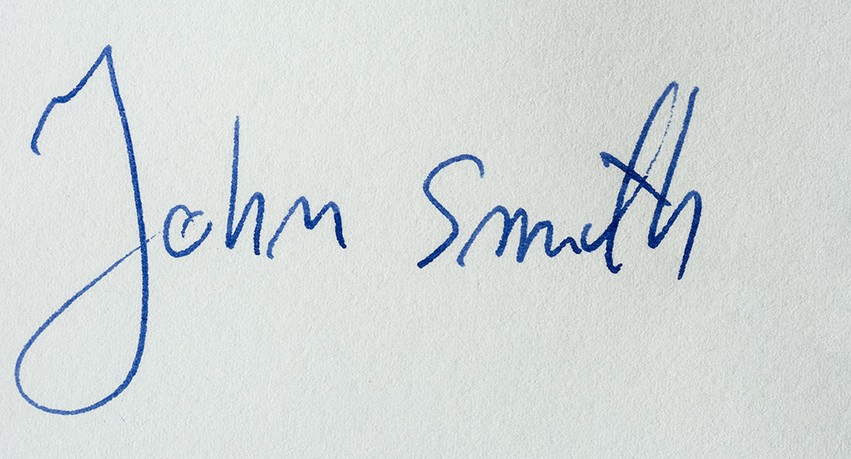
Choose Take Photo right from the Add Signature menu — Continuity Camera hands the shot to your Mac, where PDF Signery crops it and lifts the ink off the paper. About ten seconds, start to finish.
 the photo appears on your Mac
Photograph it — Take Photo, right from the Add Signature menu
Crop to the ink — automatic trim, or drag the handles
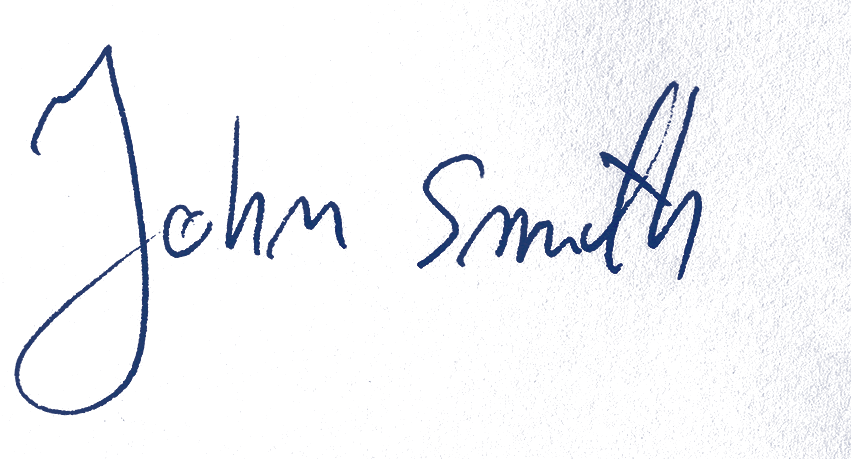
Paper gone — the background is removed on arrival
Place it — then ⌘S flattens it into the page for good
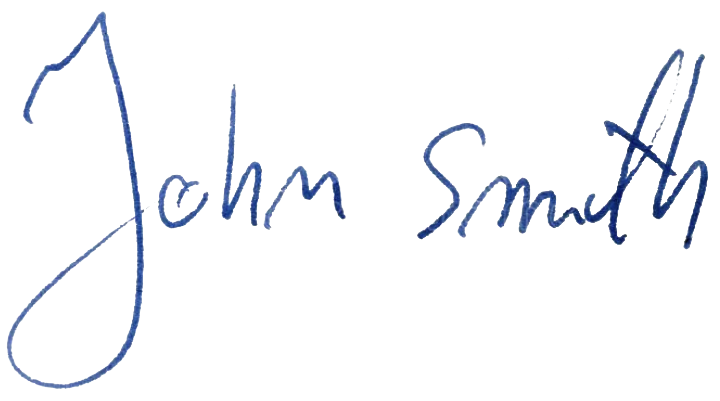
Photograph on iPhone → cropped to the ink → background removed → ready to place.
Signature background removal
Drop in a photo of your signature and PDF Signery lifts the ink off the page. It estimates the paper locally, pixel by pixel — so gradients, vignetting and textured off-white vanish in one pass, where a single white threshold would fail.
Everything else it does
Strokes render with real pen physics — width follows speed, ends taper, edges keep a subtle organic wobble. Preview and export use the same renderer, down to the pixel.
⌘S flattens signatures into the page content itself — not floating annotations that can be moved, copied or stripped. What you see is literally what's in the file.
The full signature, the initials, the formal one. Rename, reorder and reuse them across every document — the library persists between launches.
Drag onto any page, resize aspect-locked, nudge a point at a time with the arrow keys. Full undo and redo — even after saving.
No accounts, no analytics, no network code whatsoever. Your documents and your signatures never leave the Mac they're on.
Built on SwiftUI and PDFKit, 1.6 MB on disk. It launches instantly, scrolls smoothly, and respects your battery and your desktop.
How it works
01
Draw it, import a scan, or beam it from your iPhone. It's cleaned automatically and kept in your library for good.
02
Open any PDF — drag-and-drop works — then click or drag your signature onto any page. Resize, nudge, move it until it sits exactly right.
03
Signatures flatten permanently into the document. Save in place, or ⇧⌘S to export a signed copy. Send it anywhere — it opens everywhere.
One app, one job — signing PDFs, done right.
Download on the App StoremacOS 15 Sequoia or later · Apple Silicon · Available on the Mac App Store